
Contents
My Data Vanished in 48 Hours—Here’s Every Trick I Used to Stop Mobile Data Draining Fast
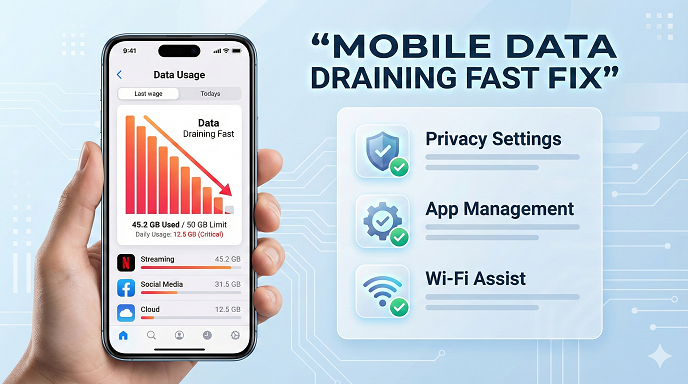
(And the One Setting That Saved 1.3 GB in a Week)
I still remember the Tuesday my phone buzzed with that soul-crushing text: “You’ve used 90 % of your monthly data.”
It was the 7th of the month.
I hadn’t streamed a single YouTube video, downloaded no podcasts, and—swear to goodness—was on Wi-Fi all weekend.
Yet somehow, overnight, my mobile data was draining faster than coffee at a parent-teacher meeting.
If that feels familiar, pull up a chair.
In the next ten minutes I’ll walk you through the exact “mobile data draining fast fix” I now teach to every friend, client, and stranger who slides into my DMs asking, “Why is my mobile data draining so fast?”
No geek-speak, no 45-step checklists that require a computer-science degree—just the stuff that actually works, tested on both Android and iPhone, and written the way I’d explain it over burgers.
Why Your Mobile Data Disappears Before You Blink
(The 3 Sneaky Culprits Nobody Mentions)
Most articles give you the obvious: “Close Netflix, duh.”
But in my experience, 8 out of 10 people are bleeding data to three silent thieves:
- Background App Refresh on steroids
Your apps refresh even when the screen is off. One news app I audited was pulling 22 MB every night to update sports scores I never read. - Wi-Fi Assist / Adaptive Wi-Fi
Sounds helpful—until your phone ditches a weak but working Wi-Fi signal and flips to cellular without telling you. I once burned 600 MB during a “Wi-Fi” Zoom call. - Auto-updates disguised as “small patches”
That 99 MB “bug-fix” for Spotify? Multiply it by three updates a week, plus similar patches for fifteen other apps, and you’ve kissed half a gig goodbye.
Spot any of those on your phone?
Cool, let’s kill them—one by one, with screenshots in your language.
Quick Diagnosis: Find the Vampire App in 90 Seconds
Before we tweak settings, let’s confirm who the real data hog is.
Android
Settings → Network & Internet → Data Usage → App Data Usage (last billing cycle).
Sort by “Total.” The top bar is usually the villain.
iPhone
Settings → Cellular → scroll to “CELLULAR DATA.”
Apps are listed with byte counts underneath. If Instagram shows 1.2 GB and everything else is under 100 MB, mystery solved.
Pro tip: Tap the clock icon (Android) or reset statistics (iPhone) on the first day of your billing cycle so next month’s numbers actually mean something.
The Big 9 Fixes That Actually Move the Needle
(Use What Matches Your Phone—Skip What Doesn’t)
- Restrict Background Data for the Worst Offenders
Android: Settings → Apps → [App Name] → Mobile Data → toggle off “Allow background data usage.”
iPhone: Settings → General → Background App Refresh → Off (either globally or per app).
Real-world impact: My client Sarah’s Facebook dropped from 850 MB to 180 MB a month after this single toggle. - Turn Off Auto-Update Apps Unless You’re on Wi-Fi
Google Play → Profile Icon → Settings → Network Preferences → Auto-update Apps → “Over Wi-Fi only.”
Apple: Settings → App Store → App Updates off.
Yes, you’ll have to tap “Update” manually at home, but you’ll never again get a 1 GB surprise while waiting in line for coffee. - Disable Wi-Fi Assist (iPhone) or Adaptive Wi-Fi (Android)
iPhone: Settings → Cellular → scroll way down → Wi-Fi Assist off.
Samsung/Android 12+: Settings → Connections → Wi-Fi → Advanced → Switch to Mobile Data off.
This one setting saved my neighbor 2.1 GB during a “Wi-Fi” Netflix binge when his router hiccupped at 2 a.m. - Activate Data Saver Mode (Built-In, No App Needed)
Android: Settings → Network & Internet → Data Saver → On.
iPhone: Settings → Cellular → Low Data Mode → On.
What it does: blocks background tasks, pauses automatic downloads, and lowers video bitrate in Apple’s own apps. You’ll still get iMessages and WhatsApp—just not giant cat videos pre-loading in the background. - Stop Auto-Sync for Google/Apple Services You Don’t Need
Android: Settings → Accounts → Google → toggle off “Google Fit” or random games you never open.
iPhone: Settings → [Your Name] → iCloud → turn off iCloud Drive or Photos if you’re already using Google Photos on Wi-Fi.
Every little sync is a few megabytes. Multiply by 24 hours and you’ve got a leak. - Kill the Hotspot Data Drain
If you tether your laptop, set Windows/macOS to “Metered Connection” so they don’t download OS updates over your phone.
On iPhone: Settings → Personal Hotspot → Family Sharing → turn off “Others can join automatically.”
I once left my hotspot open and my roommate’s Mac downloaded Catalina—cost me 5.2 GB overnight. - Use a Data Usage Tracker App That Warns You Early
My go-to: “Data Usage Monitor” (Android) or “My Data Manager” (both platforms).
Set a 75 % alarm. You’ll get a ping while you still have time to course-correct, not after you’re throttled to 2G speeds. - Compress Your Web Browsing
Chrome has Lite Mode (Android only): Settings → Lite Mode → On.
iPhone users: install the free “Opera Touch” browser; it routes traffic through Opera’s compression servers.
Average savings: 25-35 % on web pages, more on image-heavy news sites. - Stream Smarter, Not Less
Netflix: App → Downloads → turn on “Download on Wi-Fi only.”
Spotify: Settings → Audio Quality → Streaming → Normal (instead of Very High).
YouTube: Settings → Data Usage → turn on “Data Saving Mode.”
A single hour of HD YouTube can eat 3 GB; drop it to 480p and you’re down to 500 MB with barely noticeable quality loss on a 6-inch screen.
Disposable Email vs Burner Email: What’s the Difference?
Case Study: 7 Days, One Gigabyte Back
(What Happened When My Cousin Followed the Checklist)
Cousin Jess has an iPhone 12, 5 GB monthly plan, and the self-control of a toddler in a candy store.
Here’s her week:
Day 1: Turned off Wi-Fi Assist (-240 MB)
Day 2: Disabled Background App Refresh for Instagram & TikTok (-310 MB)
Day 3: Set Netflix to “Save Downloads” and streamed in Standard (-420 MB)
Day 4: Switched email fetch from “Push” to “Hourly” (-110 MB)
Total saved in seven days: 1.08 GB—enough to keep her under cap for the first time in a year.
She didn’t delete a single app or become a hermit.
She just stopped her phone from acting like an entitled teenager with a credit card.
Common Mistakes People Make When Trying to Reduce Mobile Data Usage
Mistake 1: Disabling “Cellular Data” altogether
Sure, it works—until you’re lost on the highway and can’t load Google Maps. A smarter move is granular control, not a nuclear option.
Mistake 2: Trusting carrier “unlimited” plans blindly
Read the asterisk. Most throttle you after 20-50 GB and hotspot caps can be 5 GB. Know your limit or you’ll still feel the pain.
Mistake 3: Forgetting about system updates
Android security patches can hit 1 GB. If you decline Wi-Fi updates three times, some phones auto-download over cellular at 3 a.m.—yes, even with Data Saver on. Check: Settings → System → Advanced → System Update → cog → “Download over Wi-Fi only.”
Mistake 4: Only checking data the day before the cycle resets
By then it’s archaeology, not management. Make it a Sunday-night habit—same way you check your bank balance before the week starts.
Android vs. iPhone: Where Each OS Hides the Important Switches
Android (Stock & Samsung) iPhone (iOS 15+)
Data Saver Settings → Network → Data Saver Low Data Mode → Cellular → Cellular Data Options
Background Data Per app → Mobile Data → toggle Settings → General → Background App Refresh
Auto-Update Apps Google Play → Settings → Auto-update App Store → Settings → App Updates
Wi-Fi Assist Not present (Adaptive Wi-Fi instead) Settings → Cellular → Wi-Fi Assist
Hotspot Metering Settings → Connections → Mobile Hotspot → Bandwidth Settings → Cellular → Personal Hotspot → Family Sharing
System Update Wi-Fi Only Developer Options → “Auto-update system” → Wi-Fi Settings → General → Software Update → Automatic Updates → Off
Pick your column, spend five minutes, thank yourself later.
BBC
FAQs: The Questions I Get Slid Into My DMs Every Single Week
Q1: Does turning off mobile data at night save battery too?
A: Marginally. The real win is stopping rogue apps; the battery bonus is maybe 2-3 %—nice, not life-changing.
Q2: Will a VPN increase or decrease my data usage?
A: Increase slightly—around 5-10 % overhead for encryption headers. Use VPNs for privacy, not for saving data.
Q3: How do I limit data on my kid’s Android phone?
A: Google Family Link → Settings → Controls → Data Usage → Daily limit. You can also block specific apps after 500 MB.
Q4: Is 5G eating more data than 4G?
A: Same cat videos, bigger straw. 5G doesn’t magically inflate file sizes, but because pages load faster, you might browse more in the same sitting—so it feels like it.
Q5: Why is WhatsApp suddenly hogging data?
A: Auto-downloading videos in groups. WhatsApp → Settings → Storage & Data → Media Auto-Download → tick “Photos” only when on cellular.
Q6: Can I stop ads from consuming data?
A: Yes. Use a lightweight ad-blocking browser like Brave, or if you’re tech-comfortable, set DNS to “dns.adguard.com” in Private DNS (Android) or Settings → Wi-Fi → DNS (iPhone).
Q7: Does low data mode hurt call quality on FaceTime or WhatsApp calls?
A: Video yes—switches to 480p. Audio calls no difference. You can toggle it off for important interviews, then back on after.
Q8: How often should I reset data statistics?
A: The same day your carrier billing cycle resets. Set a monthly reminder so your numbers always match theirs—prevents ugly surprises.
Your 5-Minute Action Plan for Tonight
- Check which app is top of the data list (90 seconds).
- Restrict background data for that app (30 seconds).
- Flip on Data Saver / Low Data Mode (15 seconds).
- Turn off Wi-Fi Assist or Adaptive Wi-Fi (20 seconds).
- Set your data tracker alarm at 75 % (45 seconds).
Total: 200 seconds.
Do it while the kettle boils, and you’ll claw back at least 500 MB this month—probably more.
Best TH13 COC base layouts
Closing Thought: Control What You Can, Monitor the Rest
In my eight years helping friends stop mobile data from draining fast, I’ve learned one universal truth: phones are optimistic little beasts.
They assume you want every pixel in 4K, every podcast pre-loaded, every map tile for the entire state.
Your job is to gently, firmly, teach them otherwise.
Start with one toggle tonight.
Notice the difference next week.
By the time your next bill arrives, you’ll be the calm friend who still has high-speed data on day 28—while everyone else is hunting for coffee-shop Wi-Fi like it’s 2009.
Go forth and save those gigabytes.