
Contents
The Ultimate Guide to Speeding Up Your PC: Why Windows Optimizer by TechSavvy Nayan is a Game-Changer
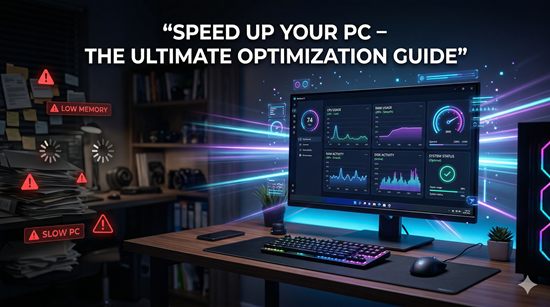
If you spend enough time working on a computer, you eventually hit a wall. You click an application, and instead of opening instantly, the cursor turns into that dreaded spinning wheel. Your fans spin up, the system lags, and a simple task suddenly takes twice as long.
We’ve all been there. Over time, Windows 10 and Windows 11 accumulate digital baggage. Temporary files pile up, background processes hijack your RAM, and startup programs silently drain your CPU power before you even open a web browser.
In my experience, the traditional advice is to download a PC cleaner. But what most people don’t realize is that mainstream cleaning tools have become exactly what they were supposed to destroy: bloated, resource-heavy, and intrusive. They constantly run in the background, pop up with annoying ads, and often delete things they shouldn’t.
That’s where a new, streamlined approach comes in. Recently, I’ve been diving deep into lightweight system utilities, and one tool stands out from the crowded market: Windows Optimizer by TechSavvy Nayan.
This isn’t your average, bloated corporate software. It’s a precision-built, lightweight Windows desktop tool designed specifically for Windows 10 and 11. It focuses on doing exactly what you need—cleaning junk, freeing up resources, and boosting responsiveness—without installing unnecessary extra baggage.
In this comprehensive guide, I’m going to break down exactly why your PC slows down, how this specific tool tackles the root causes of system lag, and how you can use it to breathe new life into an aging machine.
The Problem with Mainstream PC Cleaners
Before we talk about the solution, we need to understand the problem. After working with hundreds of slow machines over the years, I’ve noticed a recurring theme.
When a user complains about a slow PC, I usually open their Task Manager. Nine times out of ten, the culprit isn’t a virus. It’s “optimization” software.
Major brands have turned their once-great cleaners into marketing platforms. They bundle them with anti-virus trials, browser extensions, and background updaters. Ironically, the software you install to speed up your computer ends up being the primary reason your disk usage is pinned at 100%.
Furthermore, many of these older tools rely on outdated command-prompt scripts that flash scary black windows on your screen, leaving you wondering what exactly was just deleted from your system.
Users today don’t want a heavy suite of tools. They want a targeted, safe, and transparent way to regain their system’s performance.
Enter Windows Optimizer by TechSavvy Nayan
Windows Optimizer by TechSavvy Nayan was clearly built with the modern user in mind. It abandons the “everything but the kitchen sink” approach in favor of a hyper-focused, lightweight architecture.
Because it’s built exclusively for Windows 10 and Windows 11, it doesn’t carry the dead weight of legacy code meant to support Windows 7 or Vista. It speaks the modern Windows language natively.
What really caught my attention was the interface. Gone are the days of command prompt windows abruptly opening and closing. The tool features a sleek, modern dark-mode interface that is incredibly easy on the eyes. Everything happens within the app, complete with a real-time activity log so you know exactly what the software is doing at all times.
Core Philosophy: Safe and Transparent Cleaning
The most critical aspect of any system tool is safety. I’ve seen people brick their operating systems by using aggressive registry cleaners that delete vital system pathways.
Windows Optimizer avoids this trap entirely. It operates on a strict “safe cleaning logic.” It only targets files that are definitively safe to remove—like browser cache, system temp files, and orphaned log files—leaving your critical system files strictly alone.
More importantly, it features built-in restore point support. Before you make any major changes, the tool allows you to create a safety net with a single click. If you don’t like the results, you can roll your system back instantly.
Deep Dive into the Features
Let’s look under the hood. What exactly makes this tool so effective at restoring system responsiveness? Here is a breakdown of the core features and why they matter.
1. The 1-Click Boost (Instant Responsiveness)
We don’t always have time to run deep system diagnostics. Sometimes, you are about to hop on a crucial Zoom call, or you’re launching a heavy game, and you just need your PC to snap to attention immediately.
The 1-Click Boost feature is designed for exactly these moments. When you trigger it, the optimizer doesn’t just delete files. It temporarily suspends unnecessary background telemetry, flushes your DNS cache, and signals Windows to release standby memory.
The result is an immediate, palpable improvement in system responsiveness. Applications open faster, and the slight input delay that plagues heavy Windows sessions vanishes.
2. Intelligent Junk and Temp File Removal
Every time you open an image, browse a website, or install an update, Windows creates temporary files. These are supposed to be deleted automatically, but Windows is notoriously bad at cleaning up its own mess.
Over months and years, these files can consume dozens of gigabytes of your hard drive. Worse, if your drive gets too full, your PC loses the ability to write virtual memory effectively, which grinds performance to a halt.
Windows Optimizer by TechSavvy Nayan actively hunts down:
- Abandoned Windows Update remnants
- Deep-system temporary caches
- Application crash dumps (which can be massive)
- Browser cache and tracking cookies
By clearing this out safely, you not only reclaim storage space but also reduce the indexing burden on your hard drive.
3. Real-Time Resource Monitoring
You can’t fix what you can’t measure. Usually, to check your system resources, you have to hit Ctrl + Shift + Esc to bring up the Task Manager, which is often a cluttered mess of confusing process names.
This tool features an elegant dashboard that monitors your CPU, RAM, and Disk usage in real-time.
If your computer suddenly gets loud and hot, you don’t have to guess why. You can simply glance at the optimizer’s dashboard. If your RAM usage is inexplicably sitting at 90% while idle, you immediately know you have a memory leak or a rogue background app that needs to be dealt with.
4. Taming Startup Programs
This is perhaps the biggest culprit of slow boot times. Every app you install—from Spotify to Adobe Acrobat to game launchers—desperately wants to launch the second you turn on your computer.
When ten different programs fight for your CPU’s attention during boot, your PC becomes unusable for the first five minutes after turning it on.
The built-in startup manager allows you to see exactly what is launching with Windows. With simple toggle switches, you can disable unnecessary startup programs. This single action can cut your boot time in half.
5. The In-App Activity Log
Trust is paramount when software is interacting with your operating system. I absolutely despise tools that say “Fixed 1,000 issues!” without telling me what those issues actually were.
The in-app activity log in Windows Optimizer is a breath of fresh air. It provides a running, transparent list of exactly what files were removed, which processes were optimized, and how much space was reclaimed. No secrets, no smoke and mirrors.
Step-by-Step: How to Optimize Your PC Like a Pro
If you want to get the absolute most out of Windows Optimizer by TechSavvy Nayan, you shouldn’t just click buttons blindly. Here is the exact workflow I use when setting up a machine for maximum performance.
Step 1: Download and Launch
Install the lightweight executable. You’ll notice immediately how fast it opens compared to heavier suites. The modern dark-mode interface will load, displaying your current system metrics.
Step 2: Create a System Restore Point
Never skip this step. Before doing any cleaning, navigate to the tool’s safeguard section and click to create a built-in restore point. It takes about 15 seconds and guarantees that your system is protected no matter what.
Step 3: Analyze Your System Resources
Look at the dashboard. If your CPU is idling above 10-15%, or your RAM is above 50% with no apps open, you have background bloat. Note these numbers.
Step 4: Audit Your Startup Apps
Navigate to the startup manager. Be ruthless here. The only things that absolutely need to start with Windows are your audio drivers and perhaps Windows Security. Turn off game launchers, chat apps, and update helpers. You can always open them manually when you need them.
Step 5: Run the Junk Cleaner
Initiate the safe cleaning logic to clear out temp files. Review the in-app activity log afterward to see exactly how much space you reclaimed.
Step 6: Hit the 1-Click Boost
Finally, trigger the Boost feature. You should immediately see a drop in your idle RAM and CPU usage on the dashboard. Restart your computer to experience the newly optimized boot time.
Case Study: Rescuing an Aging Windows 10 Laptop
To illustrate how impactful this can be, let’s look at a common real-world scenario.
I recently helped a colleague with an aging Dell laptop running Windows 10. They were on the verge of throwing it away and spending $800 on a new one. The complaint? “It takes ten minutes to turn on, and Chrome takes forever to load.”
The Initial Metrics:
- Boot Time: 4 minutes and 12 seconds to reach a usable desktop.
- Idle RAM: 78% (Out of 8GB total).
- Idle CPU: Spiking between 40% and 100%.
Instead of reinstalling Windows from scratch, we ran Windows Optimizer by TechSavvy Nayan.
First, we found 14 unnecessary programs in the startup manager. We disabled 12 of them. Next, the safe cleaning logic identified a staggering 18GB of obsolete Windows Update files and browser cache that was choking the nearly full SSD. Finally, we hit the 1-Click Boost to kill a handful of stuck background telemetry processes.
The Post-Optimization Metrics:
- Boot Time: 45 seconds to a fully usable desktop.
- Idle RAM: Dropped to 32%.
- Idle CPU: Settled quietly at 4%.
The laptop felt brand new. We saved a perfectly good piece of hardware from the landfill simply by clearing out the digital plaque that was clogging its arteries.
Pros and Cons of Windows Optimizer by TechSavvy Nayan
No software is perfect for every single user. To be entirely objective, here is a breakdown of where this tool excels and its limitations.
| Pros | Cons |
| Incredibly Lightweight: Barely uses any system resources while running. | Windows Only: Not available for macOS or Linux users. |
| Safe Cleaning Logic: Will not delete critical registry keys or break your OS. | No Hardware Fixes: Software can’t fix a physically failing hard drive or overheating CPU. |
| Transparent UI: Modern dark mode with an in-app activity log (no CMD windows). | Manual Scheduling: You have to remember to run it; it doesn’t aggressively run in the background (though I consider this a Pro!). |
| Built-In Restore: Easy rollback options for complete peace of mind. | |
| Effective 1-Click Boost: Noticeable improvement in daily responsiveness. |
Download Link:
Common Mistakes People Make When Optimizing Windows
Even with great tools, user error can cause headaches. If you are trying to speed up your PC, avoid these common pitfalls.
1. Obsessing Over the Registry
Back in the Windows XP days, cleaning the registry was a common practice. Today, Windows 10 and 11 manage their registries perfectly fine. Deleting random registry keys will not speed up your computer, but it can break your applications. Stick to cleaning temporary files and managing startup apps.
2. Having Two Antivirus Programs
If you have Windows Defender running, you do not need a heavy third-party antivirus suite running alongside it. Running two security programs simultaneously will cripple your CPU and cause massive disk usage spikes.
3. Ignoring Browser Extensions
You can optimize Windows all day, but if your web browser has 15 sketchy extensions installed, your internet experience will still be miserable. Always audit your browser extensions alongside your system files.
4. Never Restarting
Closing your laptop lid puts the computer to sleep; it doesn’t restart it. If you haven’t actually clicked “Restart” in 30 days, your system RAM is likely a fragmented mess. A proper restart, combined with a 1-Click Boost, works wonders.
Frequently Asked Questions (FAQs)
Is Windows Optimizer by TechSavvy Nayan safe to use?
Yes. Unlike aggressive cleaners that delete core system files, this tool uses safe cleaning logic. It only targets known junk files, temporary folders, and cache. Plus, it includes built-in restore point support so you can easily undo any changes.
Will this tool delete my personal photos or documents?
Absolutely not. The software is strictly designed to target system-generated temporary files, app caches, and log files. Your personal folders (Documents, Pictures, Desktop) are completely ignored by the cleaning algorithms.
Does it work on Windows 11?
Yes, it is fully optimized for both Windows 10 and Windows 11, natively supporting the modern architecture and utilizing a sleek dark-mode interface that matches the latest Windows aesthetics.
How often should I run the optimizer?
For heavy computer users, running the junk cleaner once every two weeks is ideal. You can use the 1-Click Boost as often as you like, especially before launching demanding applications like video editors or games.
Why shouldn’t I just use the built-in Windows Disk Cleanup?
Windows Disk Cleanup is a fine basic tool, but it is incredibly slow and completely ignores background processes, RAM management, and startup programs. This optimizer combines all those necessary functions into one lightweight dashboard.
Do I need technical skills to use this?
Not at all. The interface is designed to be intuitive. Features like the 1-Click Boost require zero technical knowledge, while the real-time resource monitors provide easy-to-read visual feedback on your system’s health.
Final Verdict: Taking Back Control of Your PC
At the end of the day, your computer is a tool. It shouldn’t be a source of daily frustration.
The software industry has spent the last decade trying to convince us that we need massive, subscription-based suites to keep our computers running smoothly. What Windows Optimizer by TechSavvy Nayan proves is that less is actually more.
By focusing on the core metrics that actually matter—managing CPU and RAM, controlling startup behavior, and safely removing storage-hogging junk—this lightweight utility delivers exactly what it promises.
You don’t have to put up with a sluggish machine, and you definitely don’t have to spend a fortune upgrading your hardware just yet. By taking five minutes to audit your system, clear the digital clutter, and leverage a smart 1-Click Boost, you can dramatically improve your daily computing experience.
If your Windows 10 or 11 machine is feeling its age, I highly recommend giving it a clean sweep. Your patience—and your productivity—will thank you.