
Contents
At a Glance
- Topic: Laptop overheating problem solution
- Intent: step-by-step learning or troubleshooting
- Verify: Use this as a practical starting point, then verify important details with current authoritative sources.
- Related entities: laptop, overheating, problem, solution, 2026
Last updated: February 18, 2026
Best for: Best for readers who need a step-by-step explanation and practical troubleshooting checks.
Editorial note: This guide may use AI-assisted drafting, but it is organized and reviewed by the Bdtechsupport editorial workflow for clarity, search intent, and practical usefulness.
Laptop Overheating Problem Solution 2026: The Ultimate Guide to Cooling Down Your Machine
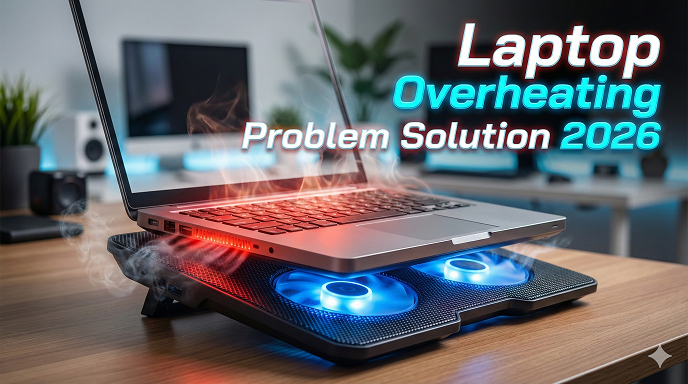
There is a very specific kind of panic that sets in when your laptop starts sounding like a jet engine preparing for takeoff. You know the feeling: you’re in the middle of a project, a game, or just streaming a movie, and suddenly the keyboard feels hot enough to fry an egg on. The cursor starts lagging, the screen stutters, and you get that sinking feeling that your machine is about to crash—or worse, melt.
If you are reading this, your computer is probably running too hot right now. Don’t worry, I’ve been there more times than I can count. Over the last decade of fixing computers, I’ve seen everything from dust bunnies the size of actual rabbits clogging fans to thermal paste that has turned into crusted chalk.
Here is the good news: fixing a hot laptop usually doesn’t require a degree in computer engineering. Whether you are rocking a brand-new 2026 model with AI cores or holding onto a trusty workhorse from five years ago, the laws of thermodynamics haven’t changed.
In this guide, we are going to walk through the definitive laptop overheating problem solution 2026 edition. We will cover the quick fixes you can do in five minutes, the deep cleaning methods that actually work, and the preventative steps to make sure you aren’t back here reading this article again next month.
Let’s get those temperatures down.
Why Is My Laptop Getting So Hot? (The Root Causes)
Before we start unscrewing things or downloading software, we need to understand the enemy. Why is this happening? Heat is the natural byproduct of electricity. Your CPU (Central Processing Unit) and GPU (Graphics Processing Unit) push electricity through billions of microscopic transistors. This creates heat.
In a perfect world, your laptop’s cooling system—the fans, heat pipes, and heatsinks—whisks that heat away instantly. But when that system fails, the heat builds up, and your laptop throttles. Throttling is a safety mechanism where the computer deliberately slows down to generate less heat so it doesn’t physically burn itself out. That is why your games lag and your browser freezes.
Here are the usual suspects:
- The Dust Blanket: This is the number one cause. Dust, pet hair, and lint get sucked into the vents and form a felt-like mat between the fan and the heatsink. It blocks the airflow completely.
- Dried Thermal Paste: Between your processor and the metal heatsink sits a gooey substance called thermal paste. Its job is to transfer heat. Over 2-3 years, this paste dries out and cracks. When that happens, heat gets trapped in the chip.
- Bad Environment: Using your laptop on a duvet, pillow, or thick carpet is a death sentence for airflow. Laptops need to breathe.
- Malware and Background Processes: Sometimes the problem isn’t hardware; it’s software. If a virus or a heavy background app (like a crypto miner) is running your CPU at 100% constantly, it’s going to get hot.
Immediate Triage: How to Fix Laptop Overheating Right Now
If your laptop is burning up as we speak, let’s do some emergency damage control before we get into the heavy lifting.
Check Your Surface I cannot stress this enough: Get your laptop off the fabric. Most laptops have intake vents on the bottom. If you place it on a bed or a couch, the fabric moulds to the bottom of the case and seals those vents shut. Move to a desk, a table, or even a large hardcover book if you’re sitting in bed. You should hear the fans sigh in relief almost immediately.
Kill the “Vampire” Apps Sometimes we don’t realize what we have running.
- Windows users: Press Ctrl + Shift + Esc to open Task Manager.
- Mac users: Open Activity Monitor.
- Look at the “CPU” column. Is anything using 80-90% of your power?
- Look for browser tabs (especially those with video ads or 4K streams) or stuck applications. End those tasks.
I once worked on a client’s laptop that was overheating simply because a print spooler service had glitched and was trying to print a document to a non-existent printer 500 times a second. Killing that process dropped the temperature by 20 degrees instantly.
Check Your Power Plan In 2026, operating systems have become very aggressive with power management.
- Go to your battery/power settings.
- If you are on “High Performance” or “Best Performance,” try switching to “Balanced” or “Better Battery.”
- This slightly reduces the voltage going to your CPU, which drastically cuts down heat generation without noticeable performance loss for basic tasks like web browsing.
See here….Best 50+ th18 cwl base link Latest Anti 2*
Deep Cleaning: The Best Laptop Overheating Problem Solution 2026
If the quick fixes didn’t solve it, we have to deal with the physical reality: dirt. This is the most effective way to stop laptop from overheating.
You might be hesitant to open your laptop, and I get that. But for most modern laptops, popping the bottom case off is standard maintenance.
What You Need:
- A small Philips head screwdriver (usually PH0 or PH00).
- A can of compressed air (canned air).
- A soft brush (a clean paintbrush or an old, soft toothbrush).
- A plastic pry tool (or an old credit card).
Step 1: The Safety First Rule Shut down the laptop completely. Unplug the charger. If your laptop has a removable battery (rare these days, but possible), take it out. If the battery is internal, just proceed with caution.
Step 2: Opening the Case Flip the laptop over. Remove the screws. Keep them organized! I use an empty egg carton to hold screws because manufacturers love to use different lengths for the corners vs. the middle. If you put a long screw in a short hole, you might poke through the plastic palm rest on the other side.
Step 3: The Fan Hold Technique Here is a pro tip that most guides miss. When you see the fan, do not just blast it with compressed air. If you spin the fan blades too fast with the air pressure, you can actually generate a back-voltage that shoots electricity back into the motherboard and shorts it out. I’ve seen it happen.
Instead, hold the fan blades still with your finger or a toothpick. Then, use short bursts of compressed air to blow the dust out of the fan and—crucially—out of the metal fins (the radiator) near the exhaust vent. You will likely see a cloud of dust puff out. That’s success.
The “Scary” Fix: Thermal Paste Replacement
If you have cleaned the fans and it is still overheating, your thermal paste is likely dead. This is common in laptops that are 3+ years old. This is the gold standard laptop heating problem fix.
The Analogy Think of thermal paste like the oil in your car. It degrades over time. When it’s fresh, it’s liquid and fills the microscopic gaps between the metal plates. When it’s old, it turns to cement and stops working.
How to Do It (Simplified)
- Locate the Heatsink: It’s the copper piping structure covering your CPU and GPU.
- Unscrew the Heatsink: Follow the numbers printed on the metal (1, 2, 3, 4) in reverse order to loosen tension evenly.
- Clean the Old Paste: You’ll see grey gunk on the shiny chips. Use 99% Isopropyl Alcohol and a coffee filter (or a lint-free cloth) to wipe it away gently until the chips look like mirrors.
- Apply New Paste: You don’t need much. A drop the size of a small pea in the center of the chip is perfect. The pressure of the heatsink will spread it out.
- Reassemble: Screw the heatsink back on (following the 1, 2, 3, 4 order) and close the case.
I have revived laptops that people were about to throw in the trash just by spending $8 on a tube of thermal paste. It is the single most effective repair you can do.
Gaming Laptop Overheating Solution: Taming the Beast
Gaming laptops are a different breed. They cram desktop-level power into a one-inch chassis. They are designed to run hot, but there is a limit.
If you are seeing temperatures hit 95°C or 100°C regularly, you are in the danger zone.
Laptop Cooling Pad 2026 Trends In the past, cooling pads were just weak USB fans that didn’t do much. In 2026, we are seeing “pressure-sealed” cooling pads. These use a foam seal to connect the cooling pad directly to the bottom of the laptop, forcing air through the system at high pressure. If you are a gamer, these are worth the investment. They can drop temps by 10-15 degrees, which is massive.
Undervolting This sounds technical, but it’s a lifesaver for gamers. Undervolting means telling your CPU to run at the same speed but using less voltage. Less voltage equals less heat. Tools like Throttlestop (for Intel) or specialized AMD utilities allow you to offset the voltage by -100mV or so. It’s free, it’s safe (the worst that happens is a blue screen reboot, and then settings reset), and it fixes the laptop temperature too high fix issue at the source.
Software Solutions and Fan Control
Sometimes the manufacturer’s default settings prioritize silence over cooling. They let the laptop get toasty so the fans don’t annoy you.
If you don’t mind the noise, you can override this.
- Check for Manufacturer Software: Dell Command, HP Omen Hub, Lenovo Vantage, or Asus Armoury Crate. Look for “Fan Profile.”
- Set it to “Max” or “Turbo” when you are doing heavy work.
- Third-Party Apps: For Mac users, an app called “Macs Fan Control” is essential. It lets you set the fans to kick in earlier, keeping the aluminum chassis from burning your legs.
Common Mistakes People Make (Please Don’t Do This)
In my quest to help people fix laptop overheating, I have seen some truly creative but terrible ideas. Let’s save you a headache.
The Freezer Myth Do not, under any circumstances, put your laptop in the fridge or freezer to cool it down. Rapid cooling causes condensation (water) to form inside the machine. Water and electronics do not mix. You will kill the motherboard instantly.
Using a Vacuum Cleaner Don’t use a household vacuum to suck dust out of the vents. Vacuum cleaners generate massive amounts of static electricity at the nozzle. If a static arc jumps to your motherboard, it’s game over. Stick to compressed air.
Ignoring the Battery If your laptop is overheating near the trackpad or the palm rest (where the battery usually sits) rather than near the screen (where the CPU sits), you might have a swollen battery. This is a fire hazard. If your trackpad looks like it’s popping up, stop using the laptop immediately and get the battery replaced.
See here….Why Temporary Email Is Becoming Popular Among Internet Users
Prevention: How to Stop Laptop From Overheating in the Future
Once you have fixed the issue, you want to keep it fixed. Here is your maintenance schedule for 2026 and beyond.
- The 6-Month Dust Check: Every six months, take a flashlight and shine it into your vents. If you see grey fuzz, use the compressed air.
- Elevation: You don’t always need a cooling pad, but a simple laptop stand that raises the back of the machine by an inch allows for significantly better airflow. Even two bottle caps under the back rubber feet can make a difference.
- Keep Drivers Updated: Graphics card drivers often come with optimizations that make the card run more efficiently. Keep them updated.
H2: Frequently Asked Questions (FAQs)
Q: Is 80 degrees Celsius hot for a laptop?
A: For a gaming laptop under load, 80°C is actually quite good and perfectly safe. However, if you are just browsing the web or typing in Word and hitting 80°C, that is overheating. You should be idling around 40°C-50°C.
Q: Can a cooling pad actually fix overheating?
A: A cooling pad can help manage the symptoms, but it won’t fix the root cause. If your thermal paste is dry or your fans are clogged, a cooling pad is just a band-aid. You need to clean the internal components first for the best results.
Q: How much does it cost to fix overheating at a shop?
A: If you aren’t comfortable doing it yourself, a basic cleaning and thermal paste replacement usually costs between $50 and $100 at a local repair shop. It is well worth the money to extend the life of a $1000 machine.
Q: Does frequent overheating damage the laptop?
A: Yes. While modern chips shut down before they melt, constant heat cycles (getting hot, cooling down) cause the solder joints on the motherboard to expand and contract. Eventually, this can cause micro-cracks that lead to hardware failure.
Q: My laptop is new (2026 model) and still gets hot.Is that normal?
A: Newer laptops, especially ultrabooks, are designed to use the metal chassis as a heat sink. It might feel hot to the touch, but the internal components might be fine. Check the internal temperatures using software like HWMonitor to be sure. If the CPU is under 90°C, it’s likely operating as designed.
Conclusion
Dealing with a laptop overheating problem solution 2026 doesn’t have to be a nightmare. It is usually a sign that your machine just needs a little bit of love and maintenance. We ask our laptops to do incredible things for us every day, and a little dust clearing or a thermal paste refresh is a small price to pay for peak performance.
Start with the easy wins: check your background apps and get the laptop off the couch. If that doesn’t work, grab that screwdriver and compressed air. It’s empowering to fix your own tech, and the feeling of a silent, cool-running laptop is incredibly satisfying.
You’ve got this. Now, go give your laptop some fresh air.
Entity Summary
This guide is connected to these core concepts: laptop, overheating, problem, solution, 2026, mixed.
| Search intent | step-by-step learning or troubleshooting |
|---|---|
| Best next step | Compare the options, review the related guides, and verify important claims with official or qualified sources. |
| Freshness check | Recheck this topic when prices, provider terms, eligibility rules, laws, or platform features change. |
Common Questions
What should readers check before using information about Laptop overheating problem solution?
Readers should compare requirements, costs, risks, eligibility, and provider terms, then verify important details with official sources or qualified professionals before making a decision.
How does Bdtechsupport make this guide useful for search and AI answers?
The guide is structured with a direct answer, clear next steps, related internal resources, and references to trustworthy sources where verification matters.
How often should Laptop overheating problem solution information be reviewed?
High-impact topics should be reviewed when prices, laws, eligibility rules, provider terms, or official guidance changes, and the visible updated date should reflect meaningful edits.