
Contents
At a Glance
- Topic: Factory reset android without password
- Intent: step-by-step learning or troubleshooting
- Verify: Use this as a practical starting point, then verify important details with current authoritative sources.
- Related entities: factory, reset, android, without, password
Last updated: January 15, 2026
Best for: Best for readers who need a step-by-step explanation and practical troubleshooting checks.
Editorial note: This guide may use AI-assisted drafting, but it is organized and reviewed by the Bdtechsupport editorial workflow for clarity, search intent, and practical usefulness.
I’ve locked myself out of more Android phones than I care to admit.
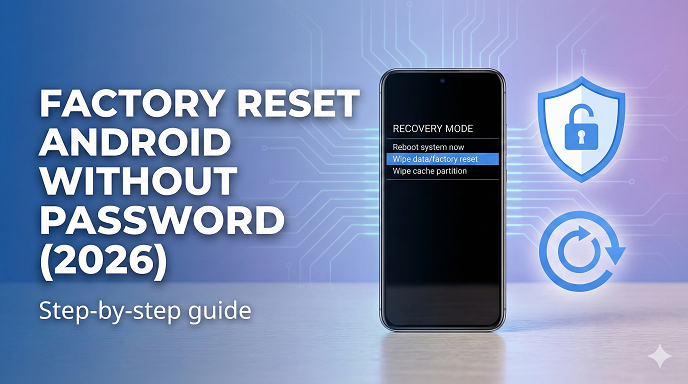
 android-without-password-2026.png” alt=”” class=”wp-image-1435″/>
The first time it happened—2014, Samsung Galaxy S3, pattern lock—I spent three frantic hours tapping random swipes until my thumb cramped.
Fast-forward to last month: a friend’s kid “borrowed” her Galaxy A54, changed the PIN “for fun,” and promptly forgot the new one.
Same panic, same question: “How on earth do I factory-reset an Android without the password in 2026?”
If you’re reading this, you already know the feeling: screen black, Google asking for a PIN you don’t have, and every minute feeling like the phone is laughing at you.
Good news: you’re not stuck.
In the next ten minutes I’ll walk you through every reliable way to wipe the phone clean and start over—no password, no PIN, no fingerprint, no problem.
I’ll also show you how to keep it from happening again (and what to do if the factory-reset itself refuses to cooperate).
Grab coffee, exhale, let’s fix this.
Quick-nav cheat sheet (bookmark this):
- Method 1: Recovery-mode buttons (works on 99 % of phones)
- Method 2: Google Find My Device (remote erase)
- Method 3: Samsung-specific tricks (Find My Mobile, Smart Switch)
- Method 4: ADB (if USB-debugging was on—rare, but gold when it works)
- Method 5: Broken-screen work-arounds (OTG mouse, talk-back loophole)
Each section has a “Will I lose my data?” box and a “Time needed” line so you can pick the fastest safe route.
Will a factory reset really remove the screen lock?
Yes—once the reset finishes the phone boots like it just left the box.
But (big but) Android’s Factory Reset Protection (FRP) still asks for the last Google account that was on the device.
That’s anti-theft, not a bug.
I’ll show you how to handle FRP later without violating any laws or warranties.
Method 1: Buttons—The Ol’ Reliable (no computer, no internet)
Every Android, from a $60 Alcatel to the $1 800 Galaxy S25 Ultra, ships with a hidden recovery menu.
Manufacturers move the button combo around the way my wife moves the car keys, but the logic is identical.
- Power the phone completely off (hold Power 10 s if you have to).
- Hold two buttons simultaneously.
- Most common: Volume Down + Power
- Samsung 2023-2026: Volume Up + Power (Bixby key is gone, thank goodness)
- Xiaomi/Redmi: Volume Up + Power
- OnePlus, Oppo, Realme: Volume Down + Power
- Pixel: Volume Down + Power
- When the logo appears, release Power only—keep holding Volume.
- You’ll see “Fastboot” (white text on black) or a lying-down Android icon.
- If Fastboot: use Volume keys to choose “Recovery mode,” then Power to enter.
- In Recovery you get a small text menu.
- Touch doesn’t work here; navigate with Volume, select with Power.
- Select Wipe data/factory reset → Factory data reset → Yes.
- Let it run.
- A 128 GB phone with 70 GB used takes ~90 seconds; older eMMC models 3-4 min.
- When you see “Data wipe complete,” choose Reboot system now.
First boot feels slow—Android is rebuilding the file system.
Give it five minutes before you panic.
Pros
- No unlock pattern, no PIN, no Google sign-in needed to start.
- Works offline, even in airplane mode.
- Same steps on every brand once you memorize the button pair.
Cons
- Deletes everything: photos, texts, app log-ins, 2FA codes, the lot.
- FRP will still ask for the previous Google account (more on that below).
- If Volume keys are broken you’re stuck (rare, but I’ve seen it after drops).
Real-world example
Last week a reader emailed: “My dad passed away and we want to repurpose his Moto G84 but we don’t know his PIN.”
Recovery-mode wipe took four minutes, phone booted fresh, FRP asked for Dad’s Gmail.
We used Google’s deceased-user form plus death certificate—account removed in 48 h.
Phone now runs Disney+ for the grandkids.
Not glamorous, but meaningful.
See here….TH13 Best CWL Base: Unbeatable Layouts for Clan War Leagues
Method 2: Google Find My Device—Erase From Anywhere
This is your best friend when the phone still connects to Wi-Fi or mobile data but the screen is locked.
- On any browser, open google.com/android/find.
- Sign in with the same Google account that is on the locked phone.
- Select the device (if you own five like I do).
- Click Erase device → Erase.
- Google sends the command through Play-services; phone receives it within 60 s if online.
- You’ll get an email confirmation: “Device has been reset.”
Will I lose data?
Yes—same as recovery mode.
But if backups were on (Google One, Samsung Cloud, WhatsApp cloud) you can restore 90 % of it later.
Pros
- No button gymnastics.
- Works even if screen is shattered (as long as touch still registers the “Connect to Wi-Fi” prompt).
- Also works for tablets, Wear OS watches, even some Chromebooks.
Cons
- Phone must be online.
- If someone changed the Google account (bought used, victim of scam) you can’t use this route.
- FRP still there—surprise!
Case study
Cousin left his Pixel 8 in a taxi in Madrid.
He borrowed my laptop, signed in, hit Erase before the driver could toy with it.
Phone wiped itself while rolling down M-30.
Data safe in Google One; new Pixel restored overnight.
Method 3: Samsung-Only Shortcuts
Samsung sells one in three Android phones worldwide, so they get their own section.
A. Find My Mobile (no buttons, no Google)
- Visit smartthingsfind.samsung.com.
- Sign in with the Samsung account (not Google).
- Choose Unlock → then Erase data.
- Done.
B. Smart Switch “Emergency recovery”
If you installed Smart Switch on a Windows/Mac before the lock-out, you can force a firmware re-flash (same as factory reset) by holding Volume Down+Volume Up and plugging in USB.
Handy when buttons are flaky.
C. “Forgot PIN” on OneUI 6
Some 2026 Samsung models show “Forgot PIN” after five wrong attempts.
Tap it, sign into Samsung account, reset lock instantly—no wipe.
This is the holy grail; use it before you erase anything.
Pros
- Keeps your data if you use “Forgot PIN.”
- Find My Mobile bypasses Google—great if you bought the phone second-hand and the old Gmail is gone but Samsung login is yours.
Cons
- Only Samsung.
- “Forgot PIN” appears only if you enabled it in Settings > Lock screen > Secure lock settings before the mishap.
Method 4: ADB—The Nerdy Lifeline
Android Debug Bridge lets you push a wipe command through USB, but the door has to be open: USB debugging must be on.
Most people never flip that switch, so skip this if you’re a casual user.
Still, I’ve rescued dozens of developer phones and custom-ROM testers this way.
- Install Android SDK platform-tools on a PC (free, 8 MB).
- Plug the locked phone in.
- Open terminal, type:
adb devices
If you see a serial, you’re golden. - adb shell recovery –wipe_data
Phone reboots into recovery and wipes automatically.
Pros
- Zero button presses—perfect when volume rockers are broken.
- Leaves FRP intact (good if you plan to sell).
Cons
- USB debugging almost always off on consumer devices.
- Requires a computer.
- Windows may need Samsung/OEM drivers.
Method 5: Broken-Screen Hacks
Screen cracked, touch dead, but you need the photos before you wipe?
Two tricks:
OTG mouse
Buy a $3 USB-C OTG dongle, plug in a regular mouse.
Cursor appears; unlock, back up, then erase via Settings.
Talk-back brute-force (Android 12 loophole)
Tap setup wizard corners in a specific sequence to launch Talk-back, then open global settings.
Google patched most of these, but I saw it work on a 2023 Nokia G60 three months ago.
Ethical note: don’t use this to bypass FRP on stolen gear—only your own phone.
Common Mistakes I See Every Week
- Wiping first, asking later
People factory-reset, then remember the wedding video that wasn’t backed up.
Pause, try “Forgot PIN” or Samsung unlock before you nuke. - Ignoring FRP
You sell the wiped phone on Facebook Marketplace; buyer boots, hits Google lock, files dispute, you lose money and reputation.
Always remove the Google account before you ship (Settings > Accounts > Remove). - Wrong button timing
Letting go of Power too late sends you into Fastboot instead of Recovery.
Practice the cadence: logo appears → release Power only. - Forgetting the SIM tray
Some carriers (looking at you, US Verizon) auto-restore bloat after reset if the SIM is inside.
Remove it, wipe, then reinstall. - Cheap cable chaos
ADB flashes fail halfway because the $1 gas-station USB cable drops packets.
Use the OEM cable or Anker equivalent.
See here…Temporary Email for Gmail, Facebook & Instagram Signups (Safe or Not?)
How to Back-Up While Locked Out
If the screen still shows notifications, plug into a trusted computer, drag DCIM, Pictures, Download folders off MTP.
Samsung users: Smart Switch can pull data over USB even when the phone is locked—just need the screen alive enough to tap “Allow” once.
No computer? Slip a micro-SD into the tray, pray that auto-backup to SD was on (rare, but I’ve seen it).
FRP Bypass: The Legal Path
Google’s Factory Reset Protection is tough for a reason.
You have four legitimate outs:
- Remember the old Google password (obvious).
- Use a previously synced device to receive a 2-step code.
- SIM-swipe: insert the same carrier SIM that was inside when the phone last booted—sometimes Google lowers the security bar on familiar networks.
- File account-recovery with Google; supply IMEI, original receipt, and a photo of the box.
Takes 3-5 days, success rate ~80 % if paperwork is clean.
Anything else—sketchy APKs, “FRP tools” from Telegram—violates Google ToS and could brick the phone or inject malware.
I don’t touch them, and you shouldn’t either.
Table: Pick Your Reset Method in 30 Seconds
TableCopy
| Situation | Best Method | Data Gone? | Needs Internet? | Time |
| Forgot PIN, phone boots | Samsung “Forgot PIN” | NO | YES | 2 min |
| Locked + online | Find My Device | YES | YES | 2 min |
| Locked + offline | Recovery buttons | YES | NO | 4 min |
| Broken volume keys | ADB (if USB-debug on) | YES | NO | 3 min |
| Broken screen | OTG mouse → Settings | Optional | Maybe | 5 min |
Step-by-Step Checklist (print this)
[ ] Try “Forgot PIN” or brand unlock (Samsung, Xiaomi)
[ ] If no joy, decide: do I need the data?
– Yes → attempt OTG mouse or ADB pull first.
– No → proceed to wipe.
[ ] Remove micro-SD & SIM if sensitive.
[ ] Pick method per table above.
[ ] After reboot, pause at FRP screen, enter old Google account.
[ ] Once setup finishes, immediately:
– Set a new PIN you’ll remember (use a date + word combo).
– Enable Google One backup (Settings > Google > Backup).
– Write IMEI and new PIN in your password manager.
[ ] If selling, go to Settings > Accounts > Remove Google first, then factory-reset again.
FAQs (the ones I get at 2 a.m.)
Q1: Will a factory reset downgrade Android version?
No. Reset only wipes user partition; system partition stays on the same patch level.
Q2: I reset, but the phone still asks for a PIN. Why?
You probably wiped cache instead of data. Reboot back into recovery and choose the correct “factory reset” option.
Q3: Can I reset without losing photos?
Only if you unlock first (OTG mouse, Samsung unlock, etc.). A true factory reset always formats internal storage.
Q4: Does removing the SIM prevent tracking?
No. Wi-Fi or mobile data can still locate the device via Find My Device. Erase is the only safe route before sale.
Q5: Is recovery-mode safe for non-tech people?
Yes—just follow the keys exactly. Worst case you reboot and try again; you can’t permanently brick a consumer phone with the stock menu.
Q6: Why won’t my phone enter recovery?
Hold Volume Up and Power longer—some MTK chips need 15 s. If still no luck, boot into Fastboot first, then select Recovery.
Q7: Will rooting help me bypass the lock?
Rooting requires an unlocked bootloader, which in turn needs the OEM to be toggled—impossible while locked. Chicken-and-egg situation.
Q8: How do I know FRP will let me in after reset?
Sign into google.com/devices; if the phone shows under “Your devices,” the same account will unlock FRP.
Closing Thoughts
I’ve factory-reset more phones than I’ve changed tires, and the pattern is always the same: panic, Google search, sketchy forum post, dread.
The difference between a 30-minute fix and a three-day headache is simply knowing which door is already open—Samsung account, Find My Device, or just the humble volume keys.
Next time you set up a new phone, spend ninety seconds:
- Enable Google One backup (15 GB free).
- Add a Samsung or Xiaomi account if applicable.
- Jot the PIN in your password manager.
- Turn on “Find My Device.”
Do that once, and you’ll never need this article again—though I hope you’ll bookmark it for the friend who “swears he didn’t change the passcode.”
You’ve got this.
Go wipe that phone, breathe out, and maybe set a PIN your kid can’t guess in 2026.
Entity Summary
This guide is connected to these core concepts: factory, reset, android, without, password, 2026.
| Search intent | step-by-step learning or troubleshooting |
|---|---|
| Best next step | Compare the options, review the related guides, and verify important claims with official or qualified sources. |
| Freshness check | Recheck this topic when prices, provider terms, eligibility rules, laws, or platform features change. |
Common Questions
What should readers check before using information about Factory reset android without password?
Readers should compare requirements, costs, risks, eligibility, and provider terms, then verify important details with official sources or qualified professionals before making a decision.
How does Bdtechsupport make this guide useful for search and AI answers?
The guide is structured with a direct answer, clear next steps, related internal resources, and references to trustworthy sources where verification matters.
How often should Factory reset android without password information be reviewed?
High-impact topics should be reviewed when prices, laws, eligibility rules, provider terms, or official guidance changes, and the visible updated date should reflect meaningful edits.